Web Design Technologies Blog
Blog Post 1 – Jan 18th
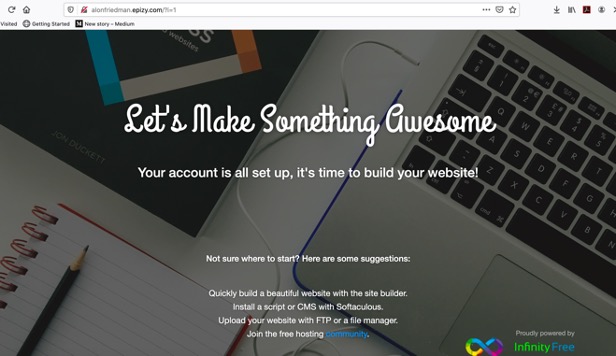
This will serve as my website, which I am hosting through C Panel. I bought the domain adozeneggs.blog from GoDaddy, and am making my own site via notepad ++. This was genuinely so much easier for me than trying to learn how to use infinityfree and a site like Wordpress.
Blog Post 2 – Jan 25th
Some difficulties I encountered was attempting to use an iframe (which I inevitably took out until I remember how to use an iframe) and I had to learn how to ensure that php would be accessible, so that I would not have to go back later and change things. The final thing I had an issue with was uploading my files via FTP only for the home page, I could not remember how to do it.
Blog Post 3 – Feb 1st
I tested the JavaScript code, and it works correctly. When the page loads, it displays the message:
The total is: 11
The Object of the code is document, and the vairables are price1, price2, and total
I tested JPG, PNG, and GIF image formats to compare image quality, loading speed, and transparency on both desktop and mobile devices. I found that JPG images loaded the fastest and worked best for photos, while PNG images had the highest quality and supported transparency but loaded more slowly. GIF images were best for simple animations, but they had lower image quality and limited transparency.
Blog Post 4 & 5 – Feb 8th
I added a JavaScript greeting message to my homepage that changes depending on the time of day. Believe it or not, I only read the first part of the assignment at first, wrote the code to add the welcome message, and then realized the second part also talked about a time based message so oh well
Now, when someone visits my website, it automatically displays “Good morning!,” “Good afternoon!,” or “Good evening!” in the top-right corner of the page.
What was easy: Using the if-else conditions to check the current hour was straightforward, and updating the greeting in the page using document.getElementById(...).textContent worked without any issues.
What was challenging: Deciding the exact cutoff times for morning, afternoon, and evening took some thought. Also, making sure the message stayed visible no matter what page content was tricky until I used CSS to fix it to the top-right corner.
I fixed another JavaScript example that uses an if-else condition to display a greeting depending on the hour. The original code had a syntax error because the else was placed inside the if block, which is not allowed in JavaScript.
Here is the corrected code:
var greeting;
var hour = new Date().getHours();

if (hour < 18) {
    greeting = "Good day";
} else {
    greeting = "Good evening";
}

document.getElementById("demo").innerHTML = greeting;
Result: When the page loads, it displays either “Good day” if the time is before 6 PM, or “Good evening” if it’s after 6 PM. For example, right now it shows: Good day
What was easy: Understanding the logic of the if-else condition and deciding the time cutoff was simple.
What was challenging: Remembering the proper syntax and placement of the else block took a moment to figure out.
Blog Post 6 – Feb 15th
This week I added an extra Button that allows students or visitors to fill out a form which asks for name, email and major, and then validates the responses. I also polished up the look of some of the website, adding borders to buttons, centering some things, and adding colors, and overall fixing my style sheet which I hadnt gotten to work (user error).
Blog Post 7 – Module 6 & 7: PHP Functions and Strings
For my Module 6 and 7 assignment, I created a PHP page that uses both a custom function and a string function. The goal of the assignment was to demonstrate how functions and strings work together in PHP.
I wrote my own function to process user input. Inside that function, I used the built-in string function strrev() to reverse the text that a user enters. This allows the website to take whatever someone types into the form and flip it upside down.
When the form is submitted, the PHP function runs on the server and displays the reversed version of the text. This helped me understand how server-side code can take input, modify it using string functions, and return a result to the webpage.
Here is the main PHP function I used:
function flipText($text) {
    return strrev($text);
}
This assignment improved my understanding of how user-defined functions and string manipulation work together in PHP development.
Blog Post 8 – Module 8: $_GET vs $_POST
For this module, I learned about the difference between $_GET and $_POST in PHP. Both are superglobals used to collect form data, but they work in different ways.
$_GET: Sends data through the URL, so the information is visible in the address bar. It's best for simple, non-sensitive data like search queries or navigation parameters. Because the data is in the URL, it is limited in length and can be bookmarked or shared easily.
$_POST: Sends data through the HTTP request body, so it is not visible in the URL. It is used for sensitive information like passwords or larger amounts of data. $_POST is more secure and flexible, but the data cannot be bookmarked or shared through the URL.
In short: $_GET is visible in the URL and good for non-sensitive info, while $_POST is hidden and better for sensitive or large data.
Blog Post 9 – MySQL Database and Table Creation
I worked on my first MySQL database and table using cPanel and phpMyAdmin. I started by creating a new database called assignment. This part was easy because I am familiar with SQL concepts and understand what a database does, but navigating cPanel was new to me, so it took a moment to figure out which options to select.
Next, I created a table inside the database. I named it Students and added three columns (variables): FirstName, LastName, and Age. I assigned the following data types:
- FirstName – VARCHAR (length 50)
- LastName – VARCHAR (length 50)
- Age – INT
Setting up the table structure was straightforward because I knew what types of data each column would store. However, it was a bit confusing to decide on the maximum length for text fields and whether I needed to set additional options like primary keys or auto-increment values.
After the table was created, I inserted my first row of data using the Insert tab in phpMyAdmin:
INSERT INTO `Students` (`FirstName`, `LastName`, `Age`)
VALUES ('Gavin', 'Kennedy', 21);
This allowed me to see the data appear in the table immediately. I also tested adding another row to make sure everything worked correctly.
What was easy: Understanding the purpose of the database, table, and columns, and knowing which data types to use for each variable.
What was challenging: Navigating phpMyAdmin for the first time, figuring out column lengths, and understanding additional table options.
What was not clear: Initially, I wasn’t sure if I needed to type the SQL commands manually or if phpMyAdmin would generate them for me.
Blog Post 10 – March 29th
So for this week, there appears to be no actual assignment #10. In place of that, Ill just say that I had a great week off school for spring break, I went to the beach, and im thankful this is an easy assignment this week.
Back to Home